Sequence uploads
This page covers sequence upload in the Trakka web interface. For information on uploading data from the command-line, see the CLI sequence upload page.
To upload sequence data, click on the Upload entry in the sidebar, and then select the Upload Sequences option.
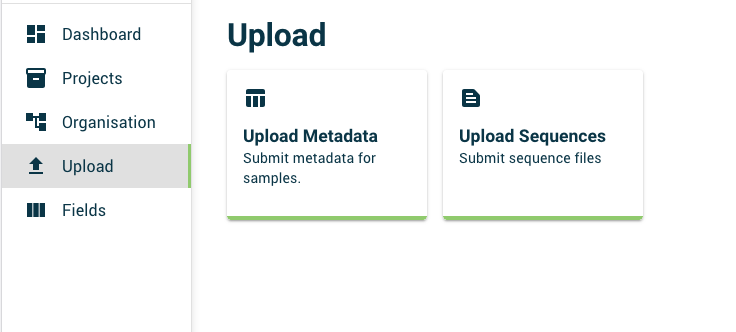
On the sequence upload page, you will see three main sections:
- The Data ownership section, where you can select the organisation which will own the uploaded data, and which projects to share data with.
- The Upload options section
- The Select files section, where you can drag-and-drop or browse for files to upload, and adjust sample names once files are selected.
Data ownership
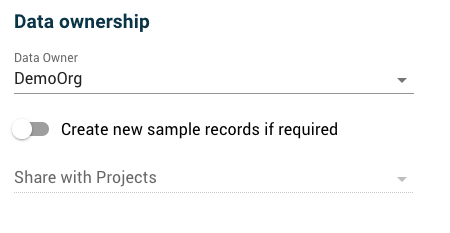
Data owner: The data owner will by default be set to your own organisation if you have Uploader rights within it. If you have permission to upload data on behalf of other organisations, you can select a different owner organisation from the dropdown menu. It is important to set the data owner correctly, as any new samples created as part of the upload will be owned by this organisation. Note that at any time after upload you can request to have sample ownership changed to another organisation, but cannot change it via this interface.
Create new sample records: By default, sequences are expected to be attached to existing sample records. If you need to
create new sample records as part of the upload, tick the Create new sample records checkbox. This will create new entries,
indexed by Seq_ID, within the Trakka database. These new records will not have any metadata values until a metadata upload is carried out.
Share with projects: If you have selected Create new sample records, you can also select one or more projects to share samples with.
All Seq_IDs in the upload will be shared, even if they are not new. If you are creating new sample records and do not share
with any projects, the sequence data will not be accessible for any project analyses.
Upload options
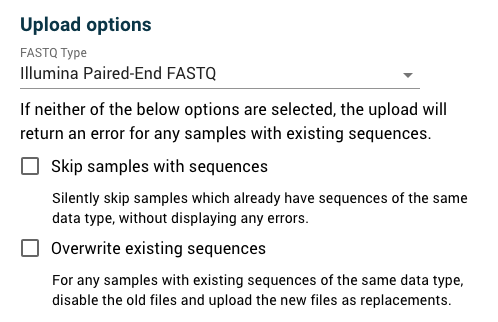
Sequence type: Select the type of sequence data you are uploading. The sequence data types recognised by Trakka are described on the Sequence data page. For most sequence data types, Trakka will attempt to extract the Seq_ID from the filename. The exception is consensus FASTA sequences, where the Seq_ID is expected to be the FASTA ID within the FASTA file.
Skip samples with sequences: By default, Trakka expects a single fileset per Seq_ID. If you try to upload sequences to a sample which already has sequences of the same type, you will get an error. If you are carrying out a bulk upload and would like to silently skip samples which already have sequences, tick this checkbox.
Overwrite existing sequences: By default, Trakka will not allow you to upload sequences to a Seq_ID which already has sequence data of the same type. If you need to replace existing sequences, tick this checkbox. This will not delete the old sequence files from storage, but will disable them so they are no longer accessible. Please contact an admin if you need to completely purge sequence data from Trakka storage.
File selection and upload
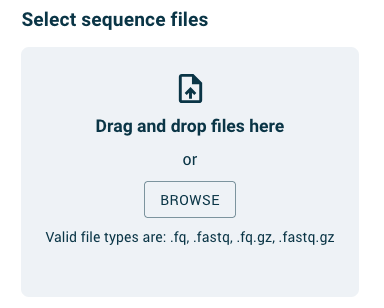
You can select files to upload by either drag-and-drop onto the file upload area, or by clicking on the Browse button within this area. Once you have selected files to upload, you will see a listing of either single or paired files, depending on the FASTQ type you selected.
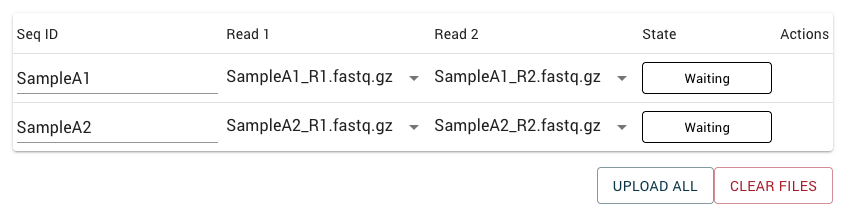
Trakka will assume that the Seq_ID is the filename up to the first underscore (_) character.
If the displayed Seq_IDs are not correct, you can edit them before uploading.
Be careful to make sure that the Seq_IDs entered exactly match Seq_IDs used for metadata upload, particularly when selecting
Create new sample records.
Once you click Upload all, you will see the state of each file or file pair update as files are uploaded.
If there are any upload errors, you can click on the Error status to see more details.