Overview
About Trakka
Trakka is a software platform for the secure sharing, management, and visualisation of genomic data and contextual sample metadata, with role-based access control. It allows contributing institutions to submit sequence data and metadata, aggregates submitted data for analysis, and provides integrated visualisation of analysis results together with contextual metadata.
Trakka is built by the AusTrakka project, a national initiative to support the genomic surveillance of pathogens in Australia.
If you would like to find out more about Trakka, or the AusTrakka project, please contact support@trakka.org.
Getting started
Logging in
User accounts on Trakka are created based on institutional Entra (Active Directory) accounts and authenticated through the originating institution. Trakka does not store your password. To login to Trakka, click the login button, and select your institutional email; the login process will then be routed to back to the originating institution for password/authentication credentials before returning to the Trakka landing page.
If you have trouble logging in, please contact an admin.
- Site maintenance: site maintenance is performed occasionally and users will be notified on the login page.
- No user account: please contact the Trakka team, or your home institution, to have an account requested.
- Wrong password: please contact your home institution.
Navigation
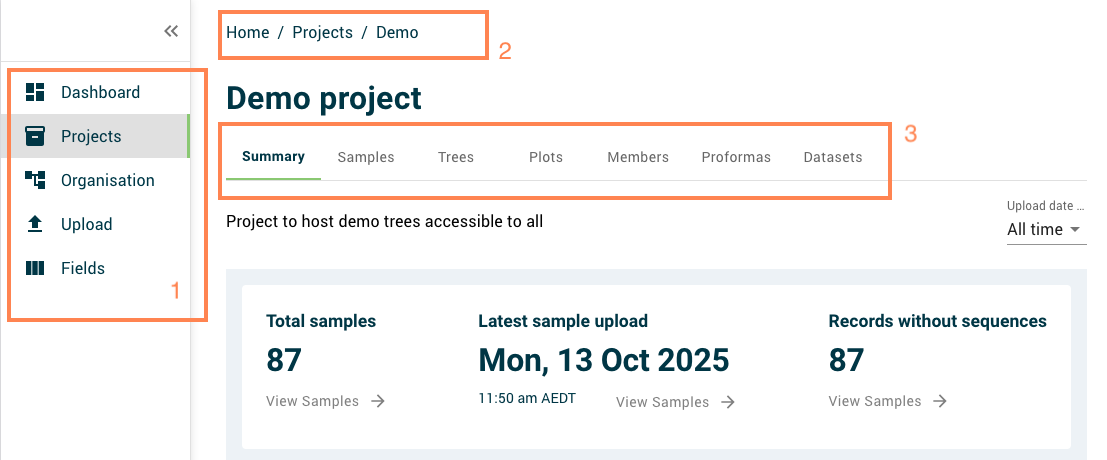
- Whenever you are logged in to Trakka, on the left side of the screen you will see a sidebar.
You can collapse and expand the sidebar using the
>>icon. The sidebar gives you access to the following pages:
- Dashboard: this is the landing page when you log in. It gives an overview of data and projects.
- Projects: this page gives you access to all the projects you are a member of.
- Organisation: this page gives you access to pages that are specific to your organisation. What you see here will depend on your roles and permissions within your organisation.
- Upload: the upload pages allow you to upload sequence data files and sample metadata.
- Fields: the fields page lists the metadata fields recognised by Trakka. In the case of controlled (i.e. categorical) fields, you can see the allowed values for the field.
-
At the top of the screen, you will see breadcrumbs showing the current navigation hierarchy. You can click on any level of the breadcrumb items to navigate back to the relevant page.
-
On some pages (Project, Organisation), you will see a set of tabs giving access to different views or functions within that page.
Dashboard
The dashboard is the landing page once a successful login has occurred.
A summary of the user’s account will be displayed at the top of the landing page and gives a summary of all data available to the logged in user, including both shared data available through projects, and data available through the user's home organisation. This widget shows the total number of samples records available for viewing, the date of the most recent sequence upload, and the number of sample records without sequence data.
The dashboard also provides an overview of the active projects of which the user is a member. Projects can be sorted by name, the number of samples within the project, latest sample, latest sequence or the latest tree generated. The sort order can be changed by clicking on the column header of the desired sort field. To get more information on a specific project, click on the associated entry in the project summary table.